> ## Documentation Index
> Fetch the complete documentation index at: https://docs.flex.ai/llms.txt
> Use this file to discover all available pages before exploring further.
# Creating an Inference Endpoint: Private Model
> Deploy an inference endpoint from a private or gated Hugging Face model
We'll use a model that requires authentication on the Hugging Face Hub. This could be a private model you have access to, or a "Gated model" that requires agreeing to the creator's license agreement, privacy policy, or similar before you can use them.
In this guide, we'll be using [https://huggingface.co/mistralai/Mistral-7B-v0.1](https://huggingface.co/mistralai/Mistral-7B-v0.1), a "Gated model" that requires agreeing to the creator's terms before you can use it.
## Gated Models
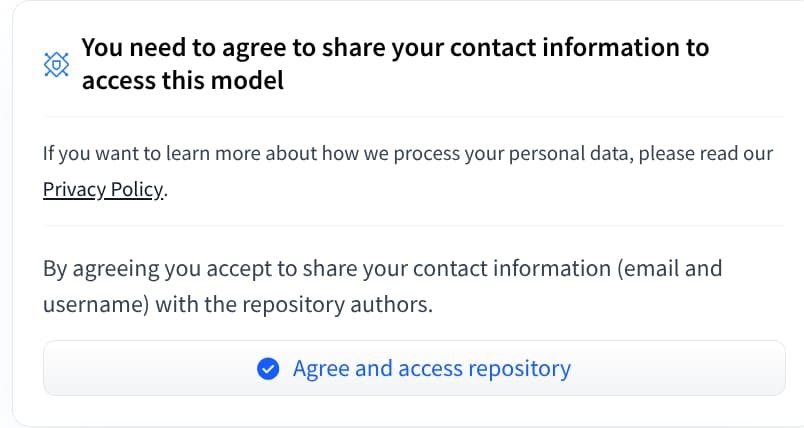
Gated models can be identified by a special symbol. If the model is "Gated", you will find the necessary information on how to proceed. Example:
 If you have already gone through the process, you will find a badge on the model's page indicating that you have access to the model. Example:
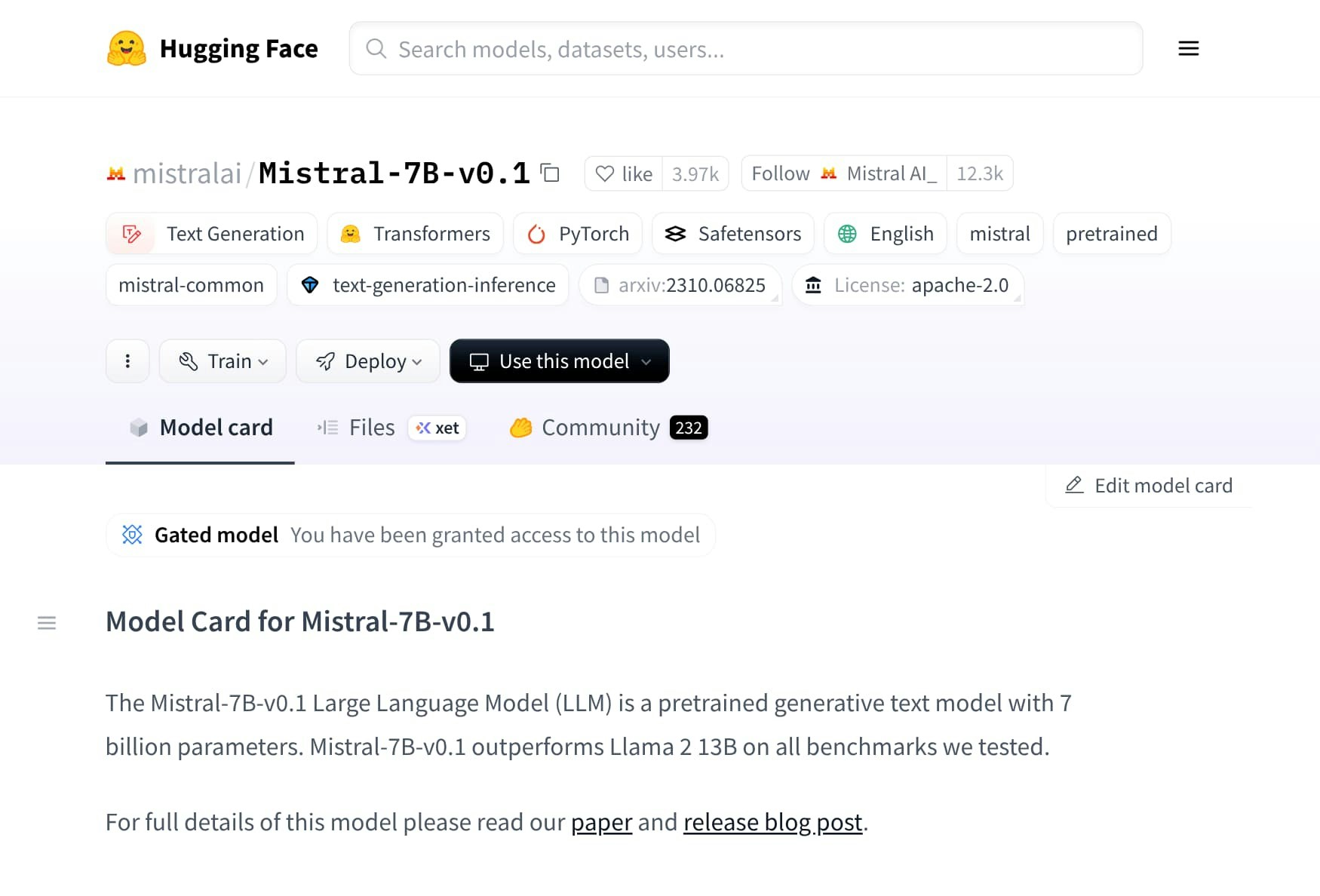 Once you've been granted access to the model, you can proceed with the process of creating a Hugging Face Access Token to authenticate requests towards the Hugging Face Hub.
## Creating a Hugging Face Access Token
To create a Hugging Face Access Token, follow these steps:
1. Go to your [Hugging Face account settings](https://huggingface.co/settings/tokens). Confirm your identity if requested by entering your credentials.
2. Select the "+ Create new token" button.
3. Set the "Token type" to Read.
4. Enter a name for your token in the "Token name" field.
5. Select the "Create token" button.
6. A "Save your Access Token" prompt will appear. Copy the generated token.
We recommend you keep the "Save your Access Token" prompt open until you've securely stored your token as a FlexAI Secret, as you won't be able to view it again.
## Storing a Hugging Face Access Token as a FlexAI Secret
To store your Hugging Face Access Token as a FlexAI Secret, follow these steps:
1. Navigate to the **Secrets** section from the navigation bar.
2. Select the **+ New** button to open the creation form panel.
3. Set a **Secret Name** that clearly describes the purpose of the Secret. It must follow the FlexAI Resource Naming Conventions. In this example we'll use `hf_token`.
4. Enter the **Secret Value** either manually or by pasting it from your clipboard.
5. Select the **Submit** button to save your new Secret.
1. Create a Secret by using the `flexai secret create` command, which will receive the name of the secret as its only argument. In this case we will use `hf_token` to store a Hugging Face Access Token.
```bash theme={null}
flexai secret create hf_token
```
2. You will be prompted to enter the value for the secret. You can either type in the value directly or paste it. In any case, the value will not be displayed in the terminal.
```bash theme={null}
flexai secret create hf_token
Secret Value: █
```
## Creating a FlexAI Inference Endpoint
1. Navigate to the **Inference** section from either the navigation bar or the card on the home page.
2. Select the "+ New" button to display the "Launch Inference" panel.
3. Fill out the *Launch Inference* form according to the instructions below.
### The *Launch Inference* form
The *Launch Inference* form consists of a set of required and optional fields that you can use to customize your deployment.
#### Required Fields
* **Name**: A unique name for your inference endpoint. This will be used to identify your endpoint in the FlexAI console. It must follow the FlexAI [resource naming conventions](/best-practices/resource-naming-conventions/).
* **Hugging Face Model**: The name of the model to deploy.
* **Hugging Face Token**: The name of the Secret you used to store your Hugging Face Access Token.
* **Cluster**: The cluster where the Training workload will run. It can be selected from a dropdown list of available clusters in your FlexAI account.
#### Form Values
| Field | Value |
| ---------------------- | ---------------------------------------- |
| **Name** | `quickstart-inference-mistral` |
| **Hugging Face Model** | `mistralai/Mistral-7B-v0.1` |
| **Hugging Face Token** | `hf_token` |
| **Cluster** | *Your organization's designated cluster* |
#### Other fields
There are a few optional fields that you can use to customize your deployment:
* **API Key**: A secret key that will be used to authenticate requests to your Inference endpoint. If left empty, a random API Key will be generated and displayed to you after you initiate the deployment process. Make sure to copy it and store it in a safe place, as you will not be able to see it again.
* **vLLM Parameters**: A [set of arguments that will be passed to vLLM](https://docs.vllm.ai/en/latest/serving/engine_args.html). You can use this to customize the behavior of the vLLM server, such as setting the maximum number of tokens to generate, the temperature, and other parameters.
FlexAI handles device selection for you, so the `--device` vLLM parameter isn't supported here — just leave it out.
### Starting the Inference Endpoint
After filling out the form, select the **Submit** button to start the Inference Endpoint deployment.
You should get a confirmation window displaying the details of your Inference Endpoint, including the API Key that needs to be used to authenticate requests towards the endpoint.
Make sure to copy the API Key and **safely store it**.
You can always delete the Endpoint and create a new one if you lose it, but better to save yourself the hassle.
1. Create an Inference endpoint for the model you want to deploy and pass in name of the secret where the Hugging Face Access Token is stored to the `--hf-token-secret` flag.
```bash theme={null}
flexai inference serve mistral-7b-instruct \
--hf-token-secret hf_token \
-- --model=mistralai/Mistral-7B-Instruct-v0.1
```
2. Store the API Key you're prompted with. You will need it to authenticate your requests to the Inference Endpoint.
```text title="flexai inference serve mistral-7b-instruct..." theme={null}
Inference "mistral-7b-instruct" started successfully
Here is your API Key. Please store it safely: 0ad394db-8dba-4395-84d9-c0db1b1be0a8
. You can reference it with the name: mistral-7b-instruct-api-key
```
3. Run [`flexai inference list`](/cli/reference/inference/list) to follow the status of your Inference Endpoint and get its URL.
```bash theme={null}
flexai inference list
```
```text title="'flexai inference list' response" wrap=false theme={null}
NAME │ STATUS │ AGE │ ENDPOINT
────────────────────┼──────────────────┼─────┼──────────────────────────────────────────────────────────────────────────────────
mistral-7b-instruct │ starting │ 69s │ https://inference-55178dae-2bea-4756-a918-8a40e20b711a.platform.flex.ai
```
## Checking the status of your Inference Endpoint
After a few minutes, your Inference Endpoint should be up and running.
**Inference Endpoint Details**
You can select the gear icon ⚙️ (labeled as *Configure*) in the `Actions` field of the Inference Endpoint list row of your newly created Endpoint to open the *details panel* of the Inference Endpoint deployment.
The Details tab will be opened by default, showing you all the relevant information about your Inference Endpoint.
This tab provides you with detailed information about your Inference Endpoint, including:
**The Summary tab**
| Field | Description |
| ---------------- | ----------------------------------------------------------------------------------------------------------- |
| `ID` | The unique identifier of the Inference Endpoint. |
| `Name` | The name you assigned to the Inference Endpoint. |
| `Status` | The current status of the Inference Endpoint (e.g., `Running`, `Stopped`, etc.). |
| `URL` | The base URL of the Inference Endpoint, which you can use to query the model. |
| `Playground URL` | The URL of the Inference Playground, a user-friendly interface to interact with your deployed model. |
| `Dashboard URL` | The URL of the Inference Endpoint dashboard, where you can monitor the performance and usage of your model. |
**Configuration**
| Field | Description |
| ---------------------- | ------------------------------------------------------------------------------------------------------------------------------------------------------------------------------------------------ |
| `Device Architecture` | The architecture of the device where the Inference Endpoint is running (e.g., `nvidia`). |
| `Runtime Args` | The vLLM runtime arguments that were used to deploy the Inference Endpoint. These can be customized when creating or updating the Inference Endpoint. |
| `HF Token Secret Name` | The name of the FlexAI Secret that contains the Hugging Face Access Token, if applicable. This is only shown if the Inference Endpoint requires a Hugging Face Access Token to access the model. |
| `API Key Secret Name` | The name of the FlexAI Secret that contains the API Key used to authenticate requests to the Inference Endpoint. |
**The Activity tab**
The Activity tab provides you with a timeline of events related to your Inference Endpoint, including deployment status changes, scaling events, and more.
***
**The Logs tab**
The Logs tab provides you with real-time logs from your Inference Endpoint, allowing you to monitor its activity and troubleshoot any issues that may arise.
You can use the **Search bar** input field to filter the logs by a specific keyword. This is useful to quickly find relevant information in the logs.
***
##### `flexai inference list`
The `flexai inference list` command offers a quick overview of the current **status** and **HTTP endpoint** of your Inference Endpoints.
```bash theme={null}
flexai inference list
```
Output:
```text title="'flexai inference list' response" wrap=false theme={null}
NAME │ STATUS │ AGE │ ENDPOINT
────────────────────┼──────────────────┼─────┼──────────────────────────────────────────────────────────────────────────────────
mistral-7b-instruct │ starting │ 69s │ https://inference-55178dae-2bea-4756-a918-8a40e20b711a.platform.flex.ai
```
#### `flexai inference inspect`
The [`flexai inference inspect`](/cli/reference/inference/inspect) command provides detailed information about a specific Inference Endpoint, including its current status, configuration, and lifecycle.
```bash theme={null}
flexai inference inspect mistral-7b-instruct
```
This will display your endpoint's full configuration, runtime status, and connection details.
##### `flexai inference logs`
```bash theme={null}
flexai inference logs mistral-7b-instruct
```
Output:
```text title="flexai inference logs response" wrap=false theme={null}
[...]
[INFO] Starting inference for mistral-7b-instruct
[INFO] Inference completed successfully
[...]
```
## Managing your Inference Endpoint
The Inference Endpoints table's Actions column provides a set of actions that you can use to manage your Inference Endpoint:
* **Configure**: To access its Details panel.
* **Pause**: To temporarily stop the Inference Endpoint without deleting it.
* **Delete**: To permanently remove the Inference Endpoint.
* **Resume**: To restart a paused Inference Endpoint.
***
The FlexAI CLI provides a set of commands that you can use to manage your Inference Endpoints:
* [`flexai inference delete`](/cli/reference/inference/delete) - Deletes an Inference Endpoint.
* [`flexai inference scale`](/cli/reference/inference/scale) - Allows for the definition of scaling policies for an Inference Endpoint.
* [`flexai inference stop`](/cli/reference/inference/stop) - Stops an Inference Endpoint.
***
Once you've been granted access to the model, you can proceed with the process of creating a Hugging Face Access Token to authenticate requests towards the Hugging Face Hub.
## Creating a Hugging Face Access Token
To create a Hugging Face Access Token, follow these steps:
1. Go to your [Hugging Face account settings](https://huggingface.co/settings/tokens). Confirm your identity if requested by entering your credentials.
2. Select the "+ Create new token" button.
3. Set the "Token type" to Read.
4. Enter a name for your token in the "Token name" field.
5. Select the "Create token" button.
6. A "Save your Access Token" prompt will appear. Copy the generated token.
We recommend you keep the "Save your Access Token" prompt open until you've securely stored your token as a FlexAI Secret, as you won't be able to view it again.
## Storing a Hugging Face Access Token as a FlexAI Secret
To store your Hugging Face Access Token as a FlexAI Secret, follow these steps:
1. Navigate to the **Secrets** section from the navigation bar.
2. Select the **+ New** button to open the creation form panel.
3. Set a **Secret Name** that clearly describes the purpose of the Secret. It must follow the FlexAI Resource Naming Conventions. In this example we'll use `hf_token`.
4. Enter the **Secret Value** either manually or by pasting it from your clipboard.
5. Select the **Submit** button to save your new Secret.
1. Create a Secret by using the `flexai secret create` command, which will receive the name of the secret as its only argument. In this case we will use `hf_token` to store a Hugging Face Access Token.
```bash theme={null}
flexai secret create hf_token
```
2. You will be prompted to enter the value for the secret. You can either type in the value directly or paste it. In any case, the value will not be displayed in the terminal.
```bash theme={null}
flexai secret create hf_token
Secret Value: █
```
## Creating a FlexAI Inference Endpoint
1. Navigate to the **Inference** section from either the navigation bar or the card on the home page.
2. Select the "+ New" button to display the "Launch Inference" panel.
3. Fill out the *Launch Inference* form according to the instructions below.
### The *Launch Inference* form
The *Launch Inference* form consists of a set of required and optional fields that you can use to customize your deployment.
#### Required Fields
* **Name**: A unique name for your inference endpoint. This will be used to identify your endpoint in the FlexAI console. It must follow the FlexAI [resource naming conventions](/best-practices/resource-naming-conventions/).
* **Hugging Face Model**: The name of the model to deploy.
* **Hugging Face Token**: The name of the Secret you used to store your Hugging Face Access Token.
* **Cluster**: The cluster where the Training workload will run. It can be selected from a dropdown list of available clusters in your FlexAI account.
#### Form Values
| Field | Value |
| ---------------------- | ---------------------------------------- |
| **Name** | `quickstart-inference-mistral` |
| **Hugging Face Model** | `mistralai/Mistral-7B-v0.1` |
| **Hugging Face Token** | `hf_token` |
| **Cluster** | *Your organization's designated cluster* |
#### Other fields
There are a few optional fields that you can use to customize your deployment:
* **API Key**: A secret key that will be used to authenticate requests to your Inference endpoint. If left empty, a random API Key will be generated and displayed to you after you initiate the deployment process. Make sure to copy it and store it in a safe place, as you will not be able to see it again.
* **vLLM Parameters**: A [set of arguments that will be passed to vLLM](https://docs.vllm.ai/en/latest/serving/engine_args.html). You can use this to customize the behavior of the vLLM server, such as setting the maximum number of tokens to generate, the temperature, and other parameters.
FlexAI handles device selection for you, so the `--device` vLLM parameter isn't supported here — just leave it out.
### Starting the Inference Endpoint
After filling out the form, select the **Submit** button to start the Inference Endpoint deployment.
You should get a confirmation window displaying the details of your Inference Endpoint, including the API Key that needs to be used to authenticate requests towards the endpoint.
Make sure to copy the API Key and **safely store it**.
You can always delete the Endpoint and create a new one if you lose it, but better to save yourself the hassle.
1. Create an Inference endpoint for the model you want to deploy and pass in name of the secret where the Hugging Face Access Token is stored to the `--hf-token-secret` flag.
```bash theme={null}
flexai inference serve mistral-7b-instruct \
--hf-token-secret hf_token \
-- --model=mistralai/Mistral-7B-Instruct-v0.1
```
2. Store the API Key you're prompted with. You will need it to authenticate your requests to the Inference Endpoint.
```text title="flexai inference serve mistral-7b-instruct..." theme={null}
Inference "mistral-7b-instruct" started successfully
Here is your API Key. Please store it safely: 0ad394db-8dba-4395-84d9-c0db1b1be0a8
. You can reference it with the name: mistral-7b-instruct-api-key
```
3. Run [`flexai inference list`](/cli/reference/inference/list) to follow the status of your Inference Endpoint and get its URL.
```bash theme={null}
flexai inference list
```
```text title="'flexai inference list' response" wrap=false theme={null}
NAME │ STATUS │ AGE │ ENDPOINT
────────────────────┼──────────────────┼─────┼──────────────────────────────────────────────────────────────────────────────────
mistral-7b-instruct │ starting │ 69s │ https://inference-55178dae-2bea-4756-a918-8a40e20b711a.platform.flex.ai
```
## Checking the status of your Inference Endpoint
After a few minutes, your Inference Endpoint should be up and running.
**Inference Endpoint Details**
You can select the gear icon ⚙️ (labeled as *Configure*) in the `Actions` field of the Inference Endpoint list row of your newly created Endpoint to open the *details panel* of the Inference Endpoint deployment.
The Details tab will be opened by default, showing you all the relevant information about your Inference Endpoint.
This tab provides you with detailed information about your Inference Endpoint, including:
**The Summary tab**
| Field | Description |
| ---------------- | ----------------------------------------------------------------------------------------------------------- |
| `ID` | The unique identifier of the Inference Endpoint. |
| `Name` | The name you assigned to the Inference Endpoint. |
| `Status` | The current status of the Inference Endpoint (e.g., `Running`, `Stopped`, etc.). |
| `URL` | The base URL of the Inference Endpoint, which you can use to query the model. |
| `Playground URL` | The URL of the Inference Playground, a user-friendly interface to interact with your deployed model. |
| `Dashboard URL` | The URL of the Inference Endpoint dashboard, where you can monitor the performance and usage of your model. |
**Configuration**
| Field | Description |
| ---------------------- | ------------------------------------------------------------------------------------------------------------------------------------------------------------------------------------------------ |
| `Device Architecture` | The architecture of the device where the Inference Endpoint is running (e.g., `nvidia`). |
| `Runtime Args` | The vLLM runtime arguments that were used to deploy the Inference Endpoint. These can be customized when creating or updating the Inference Endpoint. |
| `HF Token Secret Name` | The name of the FlexAI Secret that contains the Hugging Face Access Token, if applicable. This is only shown if the Inference Endpoint requires a Hugging Face Access Token to access the model. |
| `API Key Secret Name` | The name of the FlexAI Secret that contains the API Key used to authenticate requests to the Inference Endpoint. |
**The Activity tab**
The Activity tab provides you with a timeline of events related to your Inference Endpoint, including deployment status changes, scaling events, and more.
***
**The Logs tab**
The Logs tab provides you with real-time logs from your Inference Endpoint, allowing you to monitor its activity and troubleshoot any issues that may arise.
You can use the **Search bar** input field to filter the logs by a specific keyword. This is useful to quickly find relevant information in the logs.
***
##### `flexai inference list`
The `flexai inference list` command offers a quick overview of the current **status** and **HTTP endpoint** of your Inference Endpoints.
```bash theme={null}
flexai inference list
```
Output:
```text title="'flexai inference list' response" wrap=false theme={null}
NAME │ STATUS │ AGE │ ENDPOINT
────────────────────┼──────────────────┼─────┼──────────────────────────────────────────────────────────────────────────────────
mistral-7b-instruct │ starting │ 69s │ https://inference-55178dae-2bea-4756-a918-8a40e20b711a.platform.flex.ai
```
#### `flexai inference inspect`
The [`flexai inference inspect`](/cli/reference/inference/inspect) command provides detailed information about a specific Inference Endpoint, including its current status, configuration, and lifecycle.
```bash theme={null}
flexai inference inspect mistral-7b-instruct
```
This will display your endpoint's full configuration, runtime status, and connection details.
##### `flexai inference logs`
```bash theme={null}
flexai inference logs mistral-7b-instruct
```
Output:
```text title="flexai inference logs response" wrap=false theme={null}
[...]
[INFO] Starting inference for mistral-7b-instruct
[INFO] Inference completed successfully
[...]
```
## Managing your Inference Endpoint
The Inference Endpoints table's Actions column provides a set of actions that you can use to manage your Inference Endpoint:
* **Configure**: To access its Details panel.
* **Pause**: To temporarily stop the Inference Endpoint without deleting it.
* **Delete**: To permanently remove the Inference Endpoint.
* **Resume**: To restart a paused Inference Endpoint.
***
The FlexAI CLI provides a set of commands that you can use to manage your Inference Endpoints:
* [`flexai inference delete`](/cli/reference/inference/delete) - Deletes an Inference Endpoint.
* [`flexai inference scale`](/cli/reference/inference/scale) - Allows for the definition of scaling policies for an Inference Endpoint.
* [`flexai inference stop`](/cli/reference/inference/stop) - Stops an Inference Endpoint.
***